
Federal University, Dutsin-ma Post-Graduate Admission Forms For The 2026/2027 Academic Sessions are Now On Sale. See how to apply and some vital information below.

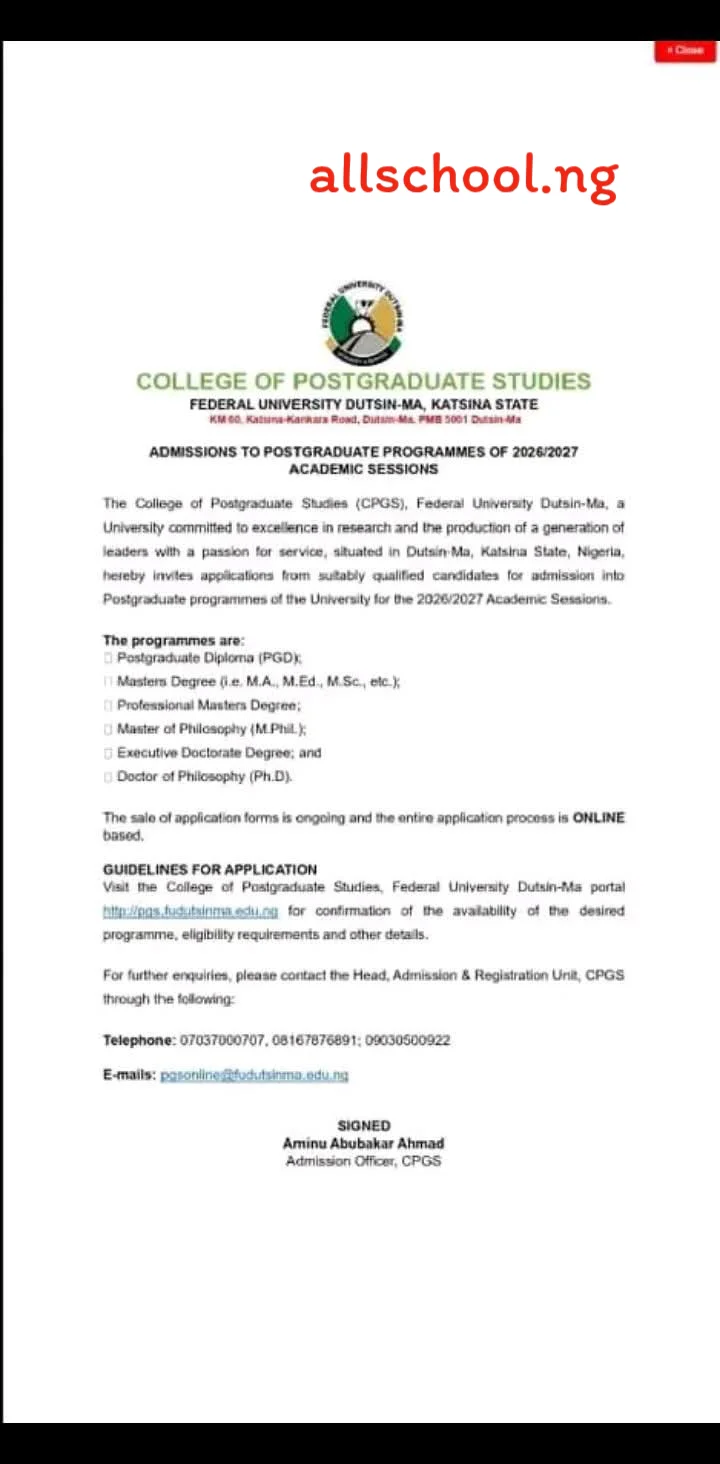
The school of Postgraduate Studies (SPGS) Federal University Dustin-Ma hereby invites applications from suitably qualified candidates for admission into Postgraduate programmes of the University for the 2026/2027 academic session.
The programmes are
- Postgraduate Diploma (PGD)
- Masters Degree (M.A , M.Ed, M.Sc)
- Professional Masters Degree
- Master of Philosophy (M.Phil)
- Doctor of Philosophy (Ph.D)
How To Apply For FUDMA Postgraduate Programmes
Kindly follow the following Steps to create an account and begin the application process:
1) Login to http://pgs.fudutsinma.edu.ng/apply and do the following:
- Beside “Surname” Type your Surname/Lastname/Father’s Name/Family Name (Note: This is a compulsory field)
- Beside “First Name” Type your First Name/Native Name Name (Note: This is a compulsory field)
- Beside “Other Names” Type your Other Names (if any)
- Beside “Email:” Type your current and active e-mail (Note: you will be required to verify this email and all notifications and communications regarding your application process shall be by e-mail. You are therefore advised to use an active e-mail that is personal and which you can always have access to. You will also not be allowed to utilize this email for another application)
- Beside “Mobile No:” Type your current GSM Number (requred format 080X XXX XXXX) (Note: you may be contacted by any of the University officials via this number in the course of processing your application)
- Beside “Faculty:” Select the faculty you are applying to (for a list of faculties, Departments and programmes visit http://spgs.fudutsinma.edu.ng)
- Beside “Programmme:” Select the Programme you are applying for (Note: you are advised to select the Faculty first before selecting the Programme)
- Click on Start Application
- You will get a notification via the email you have specified that will specify your “Application Number” and “Email” you have provided. (Note: you will be required to quote this Application Number throughout the application process)
2) You are to activate your account by doing the following:
- login to your email account
- Locate an email titled “Your Application Details” from “School of Postgraduate Studies“:
- Open the email (Note, you may find the email in your spam messages folder)
- You will find your “Application Number”and “Email” specified in the e-mail:
- You will also find a link to activate your account.
- Click on the link to activate your account (Note: you will be redirected out of your email account to the applications portal.
- Your account will be verified and activated. You will then be redirected to a page on the applications portal to generate your RRR.
3) Your Payment will be verified by and you will get a notification via e-mail when it is done (Note: you will not be allowed to complete the application form without this verification) you are therefore advised to check the following to ensure that your payment has been confirmed:
- Login to your email account
- You will find an email titled “Payment Confirmation” from “School of Postgraduate Studies“
- This is confirmation that you can now login to continue your application
- If you do not get the email immediately after payment, login to the application portal using your “Application Number” and “Email” to check if your payment has been approved.
- If Payment Status is still “PENDING” after payment has been made, click “Refresh Status” to confirm payment. (Note: If you are unable to continue your application due to non confirmation of payment, you can contact us via any of the specified e-mails or phone numbers)
- After “Account Verifcation” (step 2 above) and “Payment Verification” (step 3 above) you can login to the applications portal using your “Application Number” and “Email” to continue your application.
Recommended Articles:
- Check All Latest Schools Gist
- How to Save More Money As a Student
- The Struggles of Lecture Hall and How to Excel [Must Read]
- Some Profitable Businesses To Run On Campus As a Student
- 10 Tips to Study Late at Night without Sleeping
- 25 Etiquette (Good Behaviour) You Should Never Forget
- 10 Secrets to Making Straight A’s in Higher Institution
- Mistakes Students should never Make in Tertiary Institutions
ALLSCHOOL TEAM
Stories You Shouldn't Have Missed:
- Nigerian Poly To Suspend Students With Car, Tattoo, Dreadlocks, Others
- Indomitable Young Man Establishes His Own Law Firm Years After Giving Up on His Dream
- 33 Nigerian Students Secure $2.92 Million in Scholarships from U.S. Universities
- Auchi Polytechnic Fresher Steals Spotlight by Wearing Wedding Gown to Matriculation
- Corps Member Tearfully Mourns Absence of Friends and Family at NYSC Passing Out Parade
- Babcock’s Daniella Okangba Wins Big with Five Awards at Nigerian Law School Call to Bar Ceremony
- Expelled UNN Medical Student Claims Innocence in Exam Malpractice Case, Demands Justice
Join Our 500,000+ Community:
Thank you so much for reading. We will appreciate it if you share this with your loved ones.